Discover the Top Hidden Features in iOS 26 You Shouldn't Overlook
With every new iOS update, Apple's biggest changes get all the attention, but it's often the smaller, hidden features that truly improve how you use your iPhone. We’ve dug through all the settings in iOS 26 to find the most impactful tricks you may have overlooked.
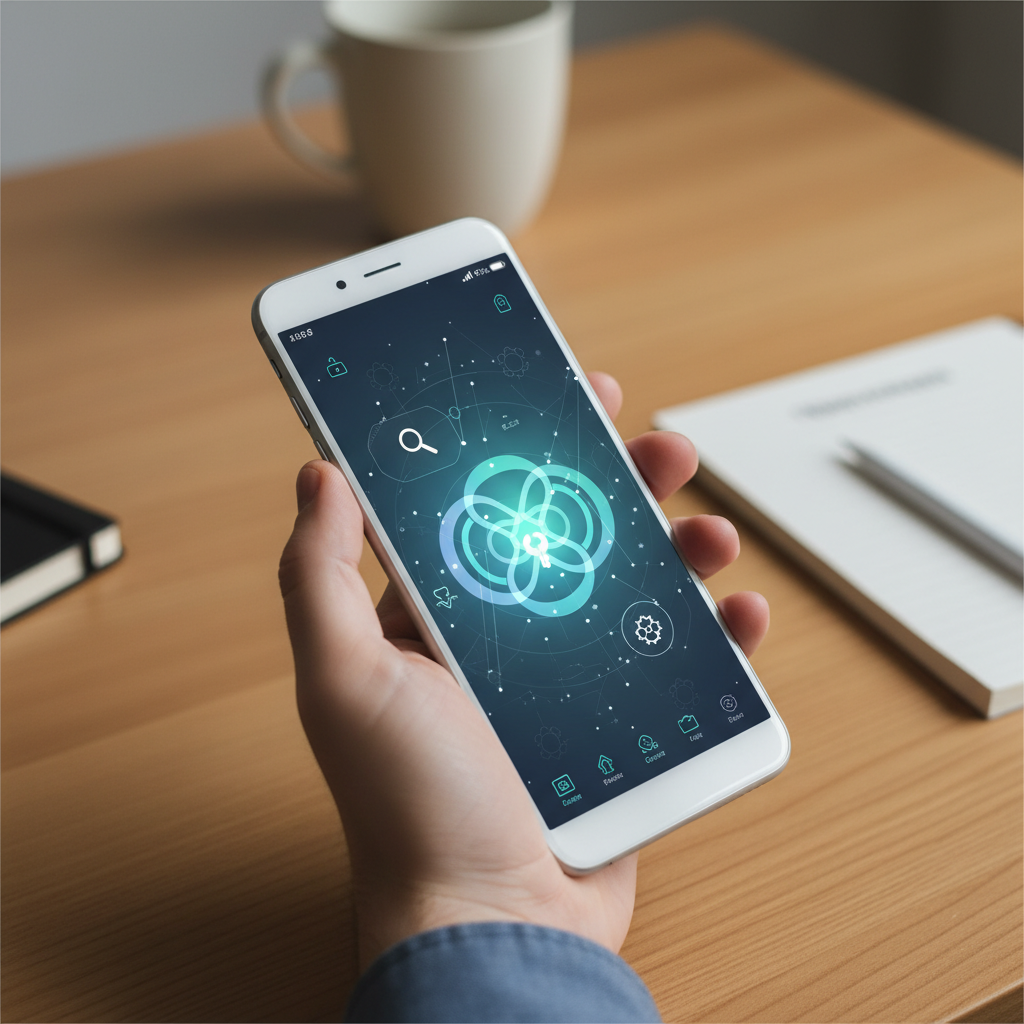
Hidden Features In iOS 26 You May Have Missed
Apple's latest mobile operating system, iOS 26, rolled out with a host of headline features that were showcased during its launch event. While improvements to the Lock Screen and Messages were front and center, a deeper dive into the software reveals a treasure trove of smaller, yet incredibly useful, features that many users haven't discovered yet. These hidden gems are designed to streamline your daily interactions with your iPhone, making it a more intuitive and powerful tool. From intelligent automations to subtle user interface tweaks, exploring these lesser-known functionalities can completely change how you use your device.
Many of these features aren't enabled by default or are tucked away in settings menus, waiting to be found. They often solve common annoyances or introduce conveniences you didn't know you needed. In this guide, we'll uncover some of the most impactful hidden features in iOS 26 that you may have missed during your initial exploration.
1. Dynamic App Dock
One of the most subtle yet powerful changes is the new Dynamic App Dock. For years, the four apps on your dock have been static, requiring you to manually change them. With iOS 26, the dock can now intelligently swap out one or two apps based on context. For example, if you connect your AirPods, the Music or Podcasts app might automatically appear in the dock. When you arrive at the office, a work-related app like Slack or Teams could slide into place.
This feature uses a combination of machine learning, location data, time of day, and connected accessories to predict which app you'll need next. You can customize its sensitivity in Settings > Home Screen & App Library > Dock Suggestions. This seemingly small change reduces the need to swipe through pages of apps, making your most relevant tools instantly accessible right when you need them.
2. Live Text for Video
Live Text, the feature that lets you copy text from photos, has received a massive upgrade in iOS 26: it now works with video. You can now pause any video in the Photos app, Safari, or other native players and interact with the text on screen. Simply pause the video, then tap and hold on any text just as you would with a photo. This allows you to copy a phone number from a passing truck in a video, translate a sign from a travel video, or look up an address shown in a clip.
This functionality is incredibly useful for capturing information that appears fleetingly. It works on-device, ensuring your privacy is maintained. The processing power of the latest chips makes this interaction seamless, turning every video on your phone into a potential source of readable, actionable information.
3. Context-Aware Back Tap Shortcuts
The Back Tap feature has always been a fan favorite for launching the camera or taking a screenshot, but iOS 26 makes it significantly smarter. You can now add conditions to your Back Tap shortcuts. This means you can program the double-tap or triple-tap to perform different actions depending on what you're doing or where you are.
For instance, you could set a double-tap to open your music app, but only when your phone is connected to your car's Bluetooth. Or, you could have a triple-tap activate a specific Shortcut, but only when you're at home. This is configured under Settings > Accessibility > Touch > Back Tap, where you'll find a new "Add Condition" option for each shortcut, preventing accidental triggers and making the feature far more versatile.
4. Interactive Lock Screen Widgets
While iOS introduced Lock Screen widgets in a previous version, iOS 26 makes them truly interactive. Before, tapping a widget would simply launch the corresponding app. Now, you can perform quick actions directly from the Lock Screen. For example, you can check off a task in your Reminders widget, pause or play a song from a third-party music app's widget, or trigger a smart home scene without ever unlocking your phone.
This turns the Lock Screen from a passive information display into a functional control center. App developers are quickly updating their widgets to support this new level of interactivity, making the Lock Screen more useful than ever. It saves time and allows you to manage quick tasks with a single tap.
5. Predictive App Pre-loading
This is a completely invisible feature that dramatically improves the perceived speed of your iPhone. Using on-device machine learning, iOS 26 analyzes your app usage patterns throughout the day. Based on this, it predicts which app you are most likely to open next and begins to pre-load it into RAM in the background. The result is that when you do tap on that app's icon, it appears to launch instantly.
You might notice that the first app you open after your morning alarm (like a news app or email) opens faster than ever before. This "Predictive Pre-loading" is entirely automatic and is designed to have a minimal impact on battery life, as it only activates when the system detects sufficient resources. There's no setting to turn it on or off; it's just a core part of the OS working to make your experience feel snappier.
6. Granular Haptic Keyboard Settings
The haptic keyboard feedback introduced in earlier versions was an all-or-nothing feature. In iOS 26, Apple has given users much more control over it. You can now adjust the intensity and even the "texture" of the haptic feedback for typing. Navigate to Settings > Sounds & Haptics > Keyboard Feedback, and you'll find a new "Haptics" menu.
Inside, you can use a slider to adjust the strength of the vibration for each keypress. There are also several new haptic patterns to choose from, such as "Crisp," "Fluid," and "Light." This allows users who found the old haptics too strong or too soft to dial in the perfect feel, making for a more satisfying and personalized typing experience.
7. Shared Photo Library AI Suggestions
iCloud Shared Photo Libraries are a great way to pool photos with family and friends, but remembering to add photos can be a chore. iOS 26 introduces intelligent, proactive suggestions. The Photos app will now periodically send you a notification with a curated collection of photos it thinks you should add to a specific Shared Library. These suggestions are based on who is in the photos, where they were taken, and your history of sharing with those people.
For example, after a family vacation, you might get a notification that says, "Add these 15 photos with Jane and John to your Family Vacation library?" You can then review and add them all with a single tap. This automation ensures your shared albums stay up-to-date with minimal effort from everyone involved.
The Evolution of iOS Features
The journey of iOS from its initial release to today has been one of constant refinement and increasing intelligence. In the early days, Apple's design philosophy, known as skeuomorphism, focused on making digital interfaces look like their real-world counterparts. The Notes app looked like a yellow legal pad, and the bookshelf in iBooks had a wooden texture. This made the transition to touchscreens intuitive for a generation of new smartphone users.
Over time, design trends shifted towards a cleaner, more minimalist aesthetic, leading to the "flat" design we are familiar with today. But the more significant evolution has been under the hood. iOS has transformed from a system where the user had to manually manage everything to one that actively tries to anticipate the user's needs. Features like Siri Suggestions, Proactive Widgets, and the new Predictive App Pre-loading in iOS 26 are prime examples of this shift.
This focus on ambient computing and artificial intelligence means that the best features are often the ones you don't see. They work quietly in the background to make your battery last longer, your apps open faster, and the right information appear at the right moment. The "hidden" features are no longer just Easter eggs for tech enthusiasts; they represent the core philosophy of a mature operating system that aims to be helpful without being intrusive.
Common Questions About Advanced iOS Features
How to Maximize Battery Life with iOS 26's New Features?
With powerful new features like Predictive App Pre-loading and Interactive Lock Screen Widgets, it's natural to be concerned about battery life. While Apple designs these features to be as efficient as possible, their impact can vary based on your usage. For instance, having many interactive widgets constantly refreshing data in the background could lead to a minor increase in battery consumption compared to a static wallpaper.
To maximize battery life, it's wise to be mindful of how you use these new tools. You can visit Settings > Battery to see which apps and system features are using the most power. If you notice a particular widget is causing a drain, you might consider removing it from your Lock Screen. Similarly, features that rely heavily on location services or background data can be managed in the Privacy settings. Ultimately, iOS 26's battery management is highly optimized, but user choice remains a key factor in getting the most out of a single charge.
Is Upgrading to iOS 26 Worth It for Older iPhone Models?
Each new iOS version raises the question of whether it's a good idea to upgrade on older hardware. Generally, Apple does a commendable job of supporting devices for many years, but not all features make it to every model. The most demanding new features, especially those that rely on advanced machine learning or camera capabilities, are often reserved for the latest iPhones with the newest processors.
For an older iPhone that supports iOS 26, the upgrade will still provide crucial security updates and many of the core software enhancements. However, you may not get access to features like Live Text for Video or the most advanced photographic styles. Performance can also be a consideration; while Apple optimizes for older hardware, a brand-new OS can sometimes feel slightly slower on a device that is several years old. The best approach is often to wait a few weeks after release, read reviews from users with the same model, and then make an informed decision.
What's the Difference Between a 'Hidden' Feature and a 'Pro' Feature?
The terms "hidden feature" and "pro feature" are often used in the context of iOS, but they refer to different things. A "hidden" feature is typically a software capability that is available to most users but isn't widely advertised. It might be a new option in the Settings menu, a new gesture, or a subtle improvement to an existing app. The Dynamic App Dock is a perfect example of a hidden feature—it's there for everyone, but you have to know about it to appreciate it.
A "pro" feature, on the other hand, is usually tied to specific high-end hardware. For example, ProRes video recording or the 120Hz ProMotion display are "pro" features because they are only available on the Pro models of the iPhone. These are major selling points designed to entice enthusiasts and professionals to purchase the more expensive devices. So, while all users can enjoy discovering hidden features, pro features are exclusive to certain hardware.
Conclusion
While the major updates in iOS 26 certainly enhance the user experience, it's the smaller, hidden features that often have the most significant impact on our daily routines. From the context-aware convenience of the Dynamic App Dock and conditional Back Tap shortcuts to the sheer utility of Live Text in video, these additions demonstrate Apple's continued focus on thoughtful, user-centric design. Taking the time to explore the depths of the Settings app and experiment with these lesser-known functionalities can unlock a more efficient, personalized, and powerful iPhone experience.